Toy Library Management Software 🧸 📚 🎀 🚗
From Version 3.2.1
→
To Version 4.0.4
All the improvements and new features in simple words — current release 4.0.4
Version 4.0.0 — March 2026
What's new in Version 4.0.0
Work on this major release began in March 2026. We’ve upgraded the technology that runs MiBaseNZ to the latest standard. This keeps your toy library software faster, more secure, and up to date with modern hosting.
We've also refreshed the way you work with MiBaseNZ in two important ways. First, a new Stats section in the top menu brings all your statistical reports together in one place: Members Stat, Toy Stat, Dynamic Dashboard, Weekly Stat, and a new Toy Library Summary with life-of-library totals and an optional date filter. Second, we've given the most important pages a consistent new design: the Members list (one list for all active members, better filters, and quick actions so you can renew, resign, or send the login email without leaving the page), the Children list, Membership Types, Payments and Transactions (3-dots Actions menu, Delete modal with reason, icon-only Export the list), the Toys on loan page (return a toy directly from the table via the Actions menu, plus Status filter and header tooltips), the Toy Category List (Toy → Category: same grey bar, Add New, Export the list, 3-dots Actions per row), and all the Stats reports now share the same grey filter bar, Export the list (PDF and Excel), and a cleaner layout without extra Documentation buttons or slide-out panels. The main content area is now full width, and the decorative toys background has been removed for a simpler, more professional look.
Everything else you use—toys, loans, reports, and all your favourite features—works the same way. This update is about making sure MiBaseNZ keeps running smoothly for years to come.
Members
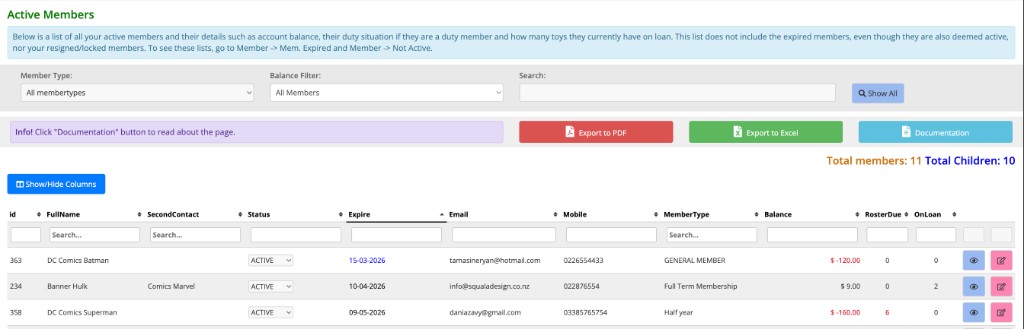
The Active Members page (Member → Members List) has been rebuilt to be clearer, faster, and more powerful.
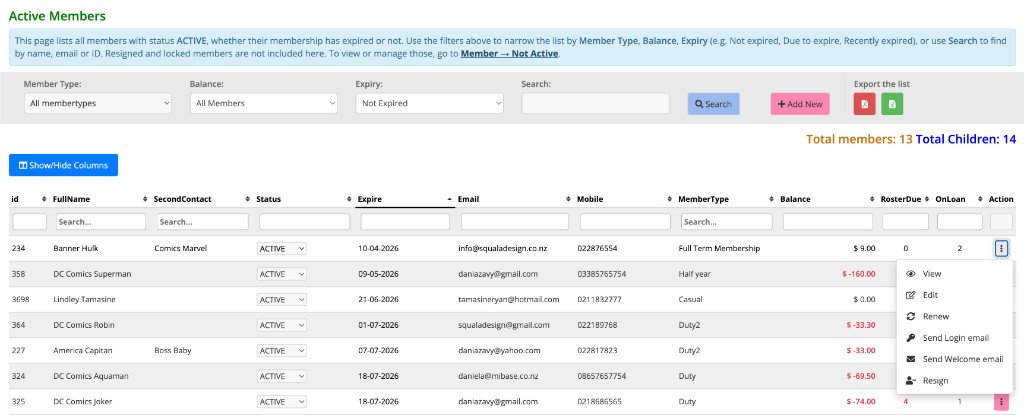
One list for all active members
- Expired and not-expired members now appear in one table. Use the new Expiry filter to show everyone, only not expired, only expired, due to expire in one month, or recently expired (last 3 months). The default view is “Not expired”.
- Filters for Member type, Balance, and Search (name, email, ID) are in the same grey bar. A + Add New button lets you create a new member from this page (Member → Members List). Export the list (PDF and Excel) sits in a separate block so the layout stays clean.
Quick actions from the list
Each member row has a single Actions button (three dots). Click it to open a menu with everything you need:
- View — Open the member’s detail page.
- Edit — Open the edit form.
- Renew — Renew the membership straight away. You stay on the list and see a success message; the new expiry date appears when the page refreshes.
- Send Login email — Sends the login email immediately, without opening another page. You get a success message back on the list.
- Send Welcome email — Sends the welcome email to the member straight away.
- Resign — Marks the member as RESIGNED. If they have toys on loan, you’ll see an error and they must return items first.
After Renew, Resign, or Send Login email, the list stays filtered as you had it (e.g. still “Not expired” or your search).
Same look on other pages
We’ve applied the same grey bar and actions to other key pages. On Member → Membership (Membership Types), you now get the same style: + Add New to create a membership type and Export the list (PDF and Excel) in one place, with no extra clutter. Actions sit on the right for a consistent feel whether the page has filters (like Members list) or not.
Before and after (Members list)
Here’s how the Active Members page looked before and after the redesign:
Children list
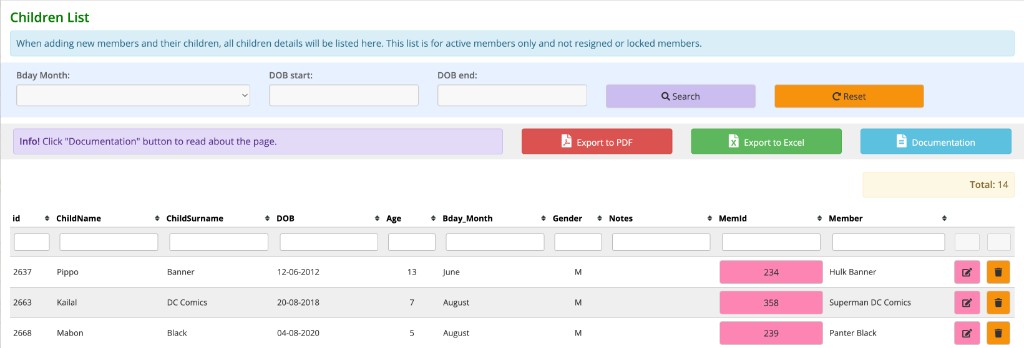
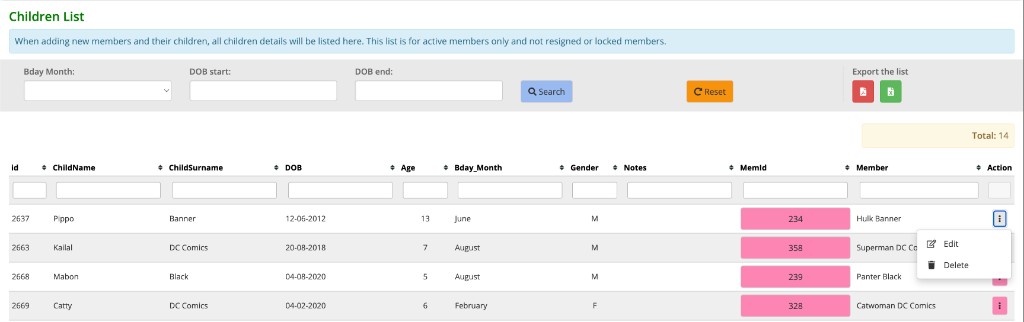
The Children List page (Member → Children List) now uses the same design as the Members list: one grey bar for filters and export, and a single Action column with a three-dots menu (Edit, Delete) instead of separate icon buttons.
- Grey bar — Bday Month, DOB start/end filters, Search and Reset, plus Export the list (PDF and Excel) in one place. The Documentation button and slide-out panel have been removed.
- Action column — Each row has one button (three dots). Click it to Edit or Delete the child record.
Before and after (Children list)
Here’s how the Children List page looked before and after the update:
Stats & Toy Library Summary
A new Stats section in the top menu groups all your statistical reports in one place. You can open Members Stat, Toy Stat, Dynamic Dashboard, Weekly Stat, and the new Toy Library Summary from a single page.
- Stats menu — Click the teal Stats button in the main navigation to see five report buttons, each with a short description.
- Toy Library Summary — A new report that shows a life-of-library summary: total loans, money received, reservations, active members, active toys, and children (with optional date filter). Totals use the same data as Members Stat so the numbers stay consistent. You can filter by date range (From / To) or view “All time” at a glance.
Stats section
Here’s the Stats page with all five report options:

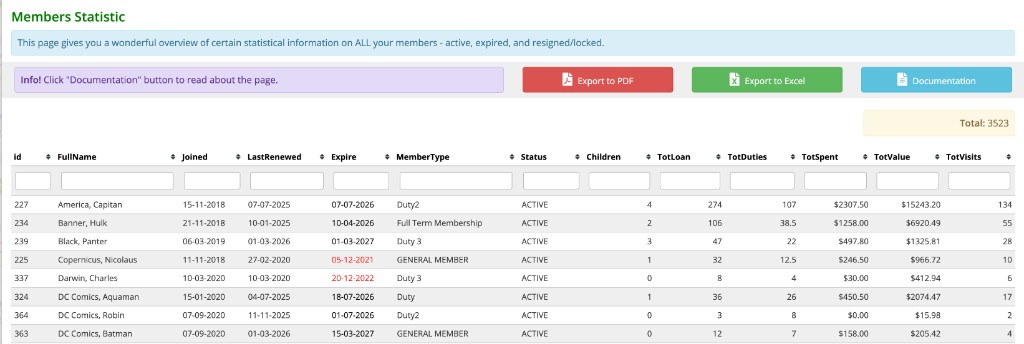
Members Statistic
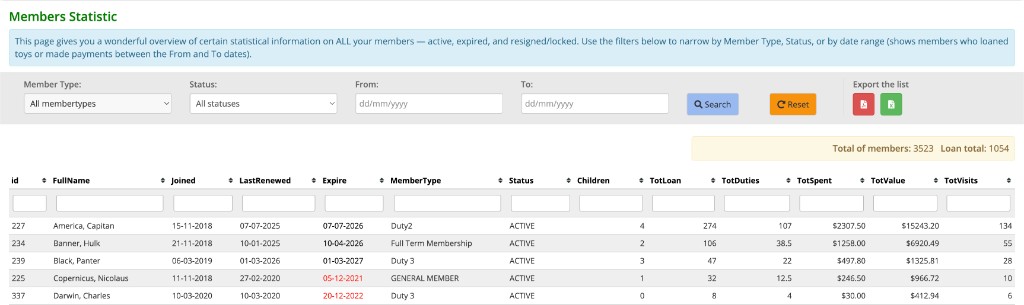
The Members Statistic page has been moved to Stats → Members Stat. Toy Stat and Weekly Stat have also been moved into the Stats section. The Members Stat page now uses the same design as the Members list and includes powerful filters plus a Loan total for the filtered results.
- Grey bar — Member Type, Status, and date range (From / To). The date filter shows members who loaned toys or made payments in that period (not just join date). Search, Reset, and Export the list (PDF and Excel). Documentation button and sidenav removed.
- Summary — Total of members (count) and Loan total (sum of TotLoan for filtered members) so you can see both at a glance.
Before and after (Members Statistic)
Here’s how the Members Statistic page looked before and after the update:
Toy Stat
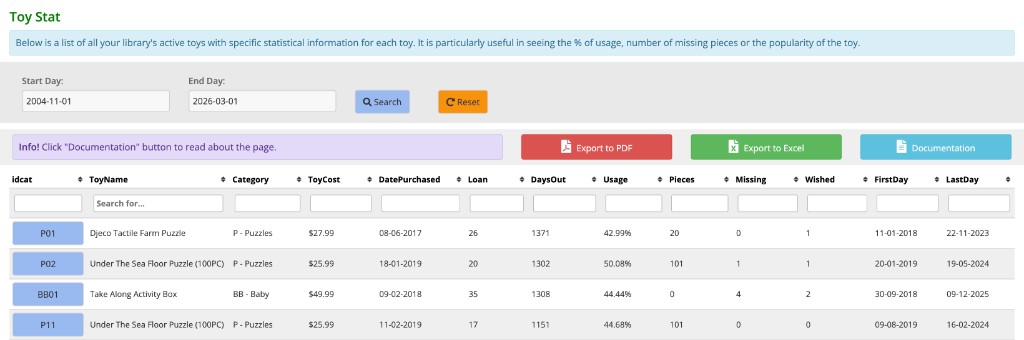
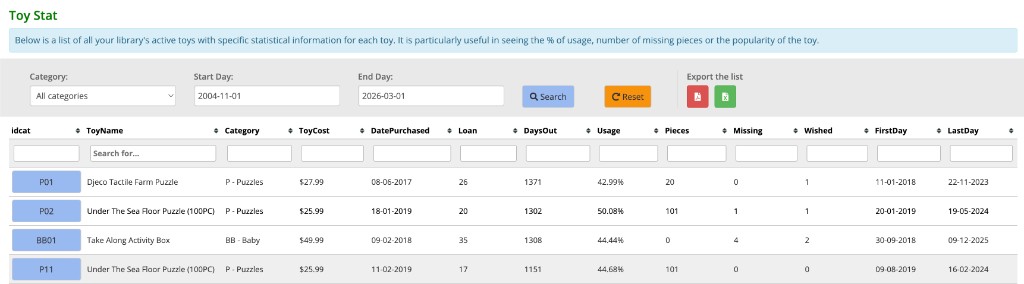
The Toy Stat page (Stats → Toy Stat) now uses the same design as Members Stat: one grey bar for filters and Export the list, with no Documentation button or slide-out panel.
- Grey bar — Category dropdown (All categories or a specific category), Start Day, End Day, Search, Reset, and Export the list (PDF and Excel). The purple info banner and Documentation button have been removed.
- The table still shows idcat, ToyName, Category, ToyCost, DatePurchased, Loan, DaysOut, Usage, Pieces, Missing, Wished, FirstDay, and LastDay, with sortable columns and inline filters.
Before and after (Toy Stat)
Here’s how the Toy Stat page looked before and after the update:
Weekly Stat
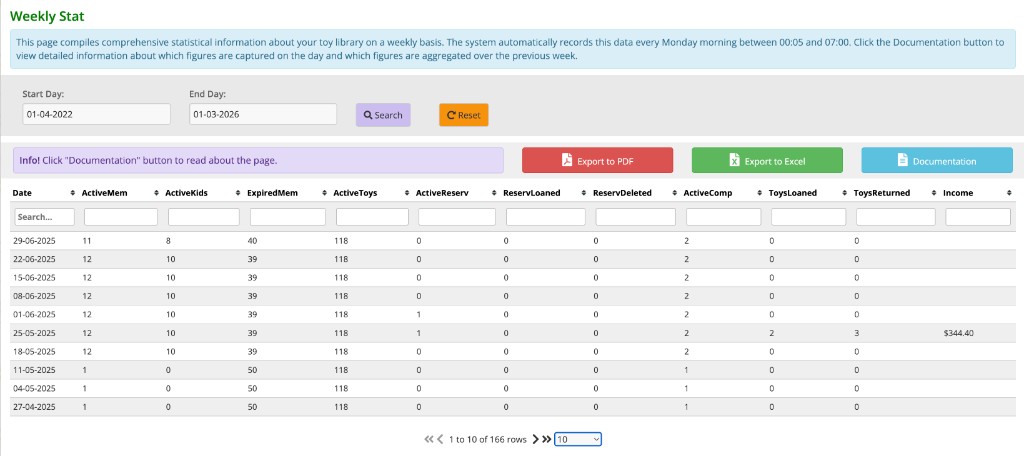
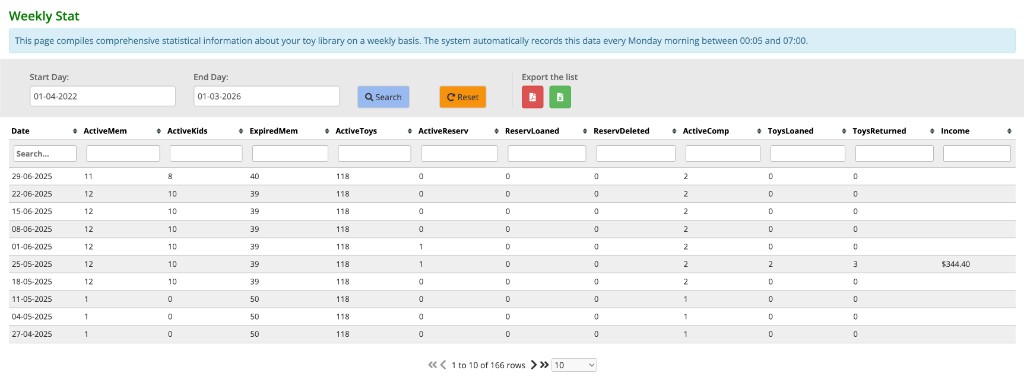
The Weekly Stat page (Stats → Weekly Stat) now uses the same design as Members Stat and Toy Stat: one grey bar for the date range and Export the list, with no Documentation button or slide-out panel.
- Grey bar — Start Day, End Day, Search, Reset, and Export the list (PDF and Excel). The purple info banner and Documentation button have been removed. The blue info box at the top no longer mentions the Documentation button.
- The table still shows weekly figures: Date, ActiveMem, ActiveKids, ExpiredMem, ActiveToys, ActiveReserv, ReservLoaned, ReservDeleted, ActiveComp, ToysLoaned, ToysReturned, and Income.
Before and after (Weekly Stat)
Here’s how the Weekly Stat page looked before and after the update:
Payments & Transactions
The Payments page (where you see a member’s payment history) and the Transactions page (all financial transactions across the library) have been updated for a cleaner layout and safer deletion.
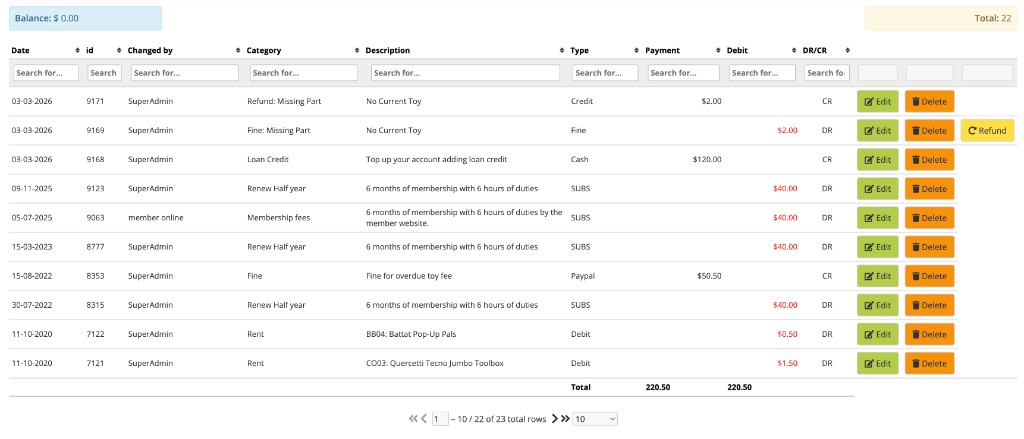
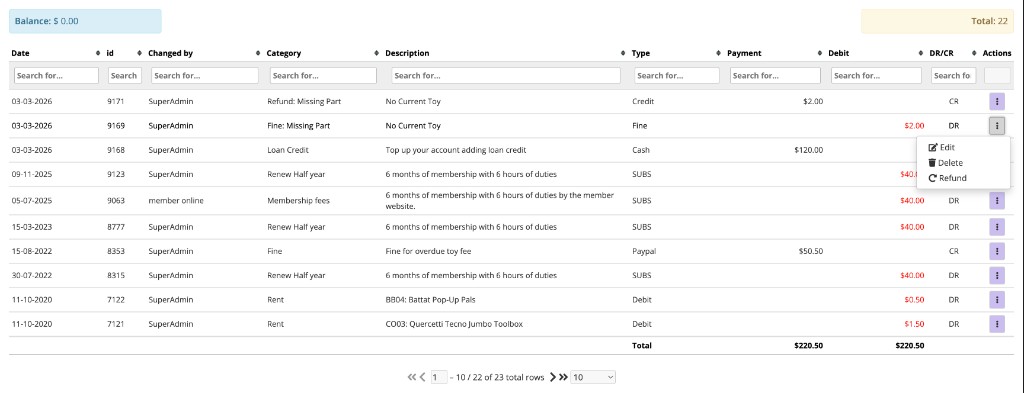
- Payments page — Actions in one menu — Instead of separate Edit, Delete, and Refund buttons per row, each transaction now has a single Actions button (three dots). Click it to choose Edit, Delete, or Refund (Refund appears only when the transaction is a “Fine: Missing Part” refund).
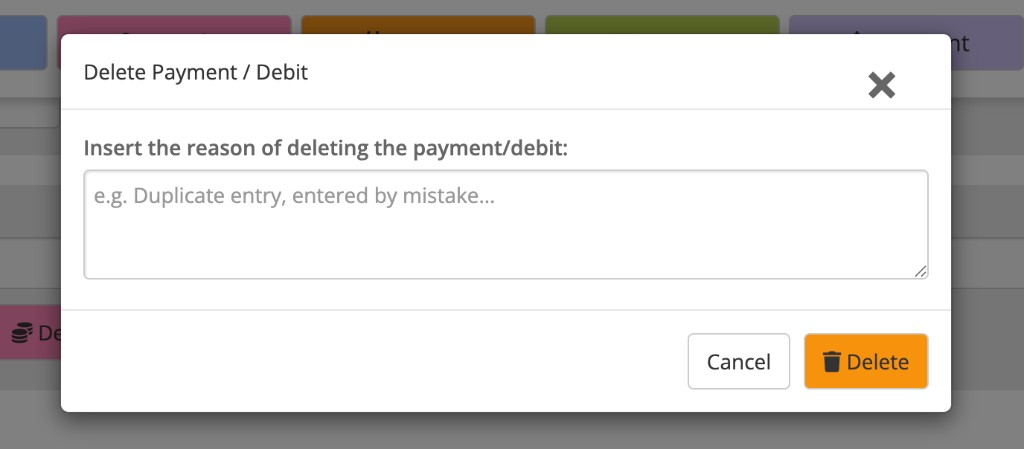
- Delete Payment modal — When you click Delete, a modal opens asking you to enter a reason (e.g. “Duplicate entry, entered by mistake”). This reason is saved with the record so you have a clear audit trail. You must confirm before the deletion is completed.
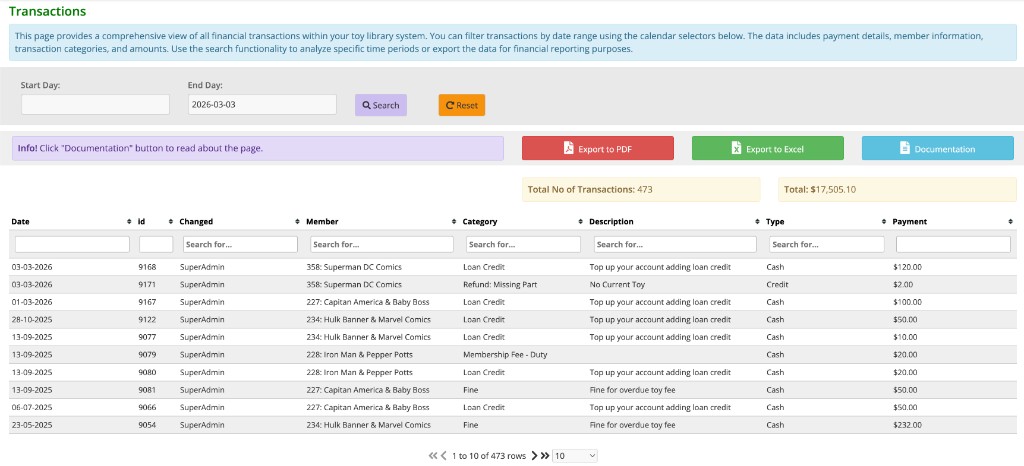
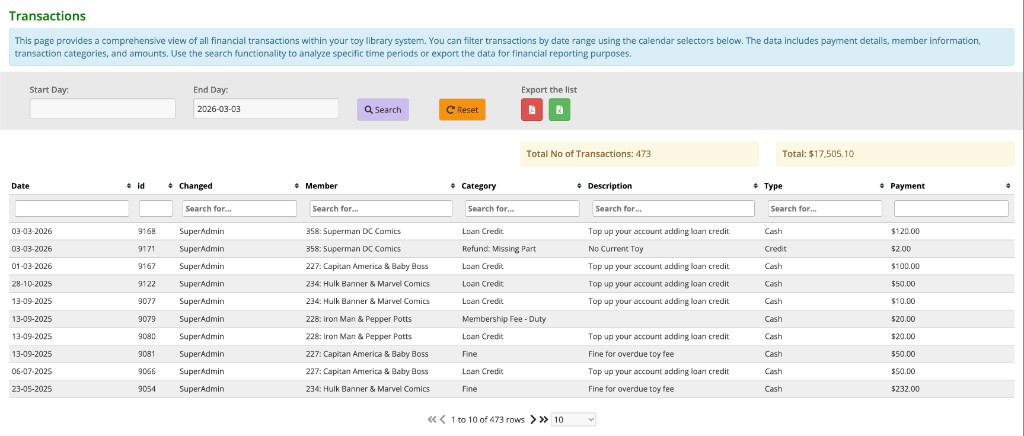
- Transactions page — Export design — The Export to PDF and Export to Excel buttons now match the Members list: compact icon-only buttons in an Export the list section within the date filter row. The Documentation button and the slide-out “Page instruction” panel have been removed for a cleaner interface.
Before and after (Transactions)
Here’s how the Transactions page looked before and after the update:
Before and after (Payments)
Here’s how the Payments page (member payment history) looked before and after the update:
Delete Payment modal
When you click Delete from the Actions menu, a modal asks for a reason before confirming:
Toys on loan
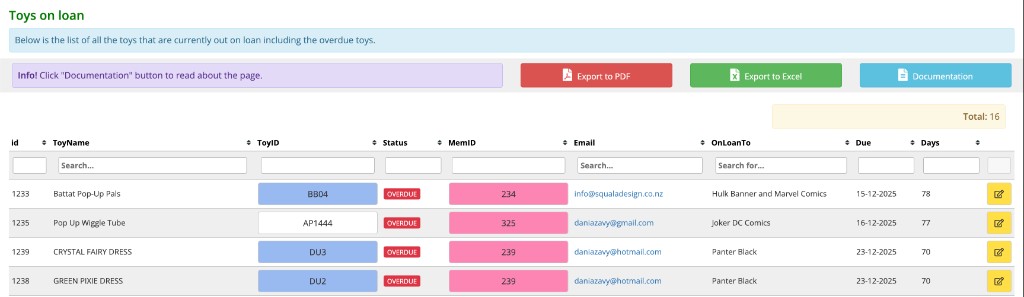
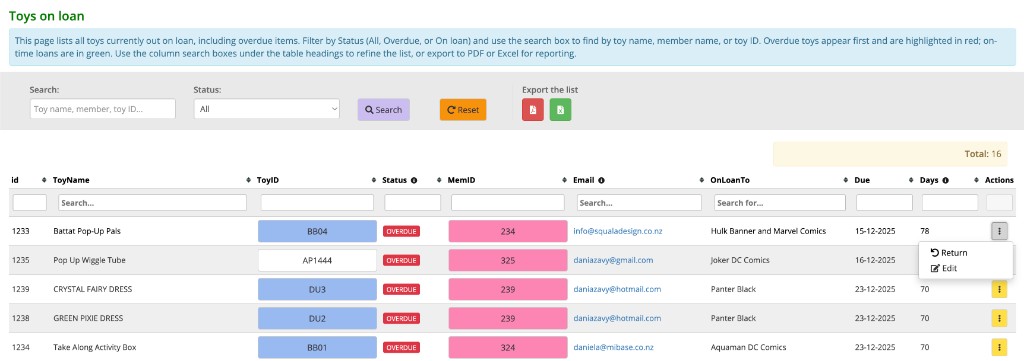
You can now return a toy directly from the Toys on loan table. No need to open the member’s Loan page first—click the three-dots Actions button on any row and choose Return. The toy is marked as returned (same process as on the Loan page) and you stay on Toys on loan. This is the main improvement: faster returns when you’re working from the full list of loans.
The page (Overdue → Toys on loan) has also been updated to match the Transactions design: one blue info banner, one grey bar for filters and export, and header tooltips for the Status, Email, and Days columns.
- Return (and Edit) from the table — Each row has one yellow Actions button (three dots). Click it to Return the toy (you are brought back to Toys on loan) or Edit the loan. Returning from here uses the same logic as the member’s Loan page.
- Grey bar — Search (text input), Status dropdown (All, Overdue, On loan), Search button (purple), Reset (orange), and Export the list (PDF and Excel icon buttons). The Documentation button and slide-out “Page instruction” panel have been removed.
- Blue info banner — Explains that the page lists all toys on loan (including overdue), how to filter by Status and search, and that overdue items appear first and are highlighted in red.
- Header tooltips — A small (i) icon next to the Status, Email, and Days column headers. Hover over it to see a short explanation (e.g. Status: Overdue vs On loan and highlighting; Days: negative = days until due, positive = days overdue).
Before and after (Toys on loan)
Here’s how the Toys on loan page looked before and after the update:
Reservations
The Reservation List page has been updated to match the new admin design (same style as Members list and Toy list) and to run cleanly on the latest PHP. Version 4.0.1 improves the Start Day filter and Reset (see above).
- Grey bar — Search Toy, Search Member, Start Day, Show All, Reset, and Export the list (PDF/Excel icon buttons).
- Actions menu — Each row now has a single three-dots Actions button with Edit and Delete (instead of separate columns).
Toy Alerts
The Toy Alerts page (Toy → Alerts) is now faster to use for day-to-day changes.
- Category filter — Quickly filter alerts by category.
- Edit Alert modal — Update the alert text directly in a popup without opening the full Edit Toy page.
Toy list
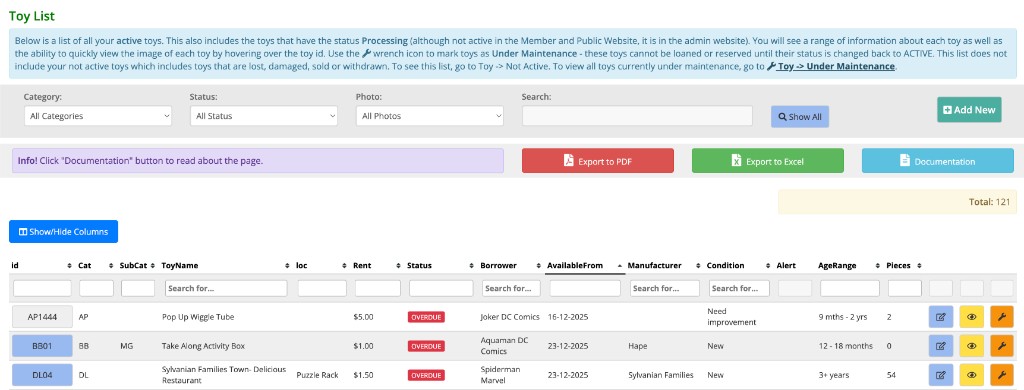
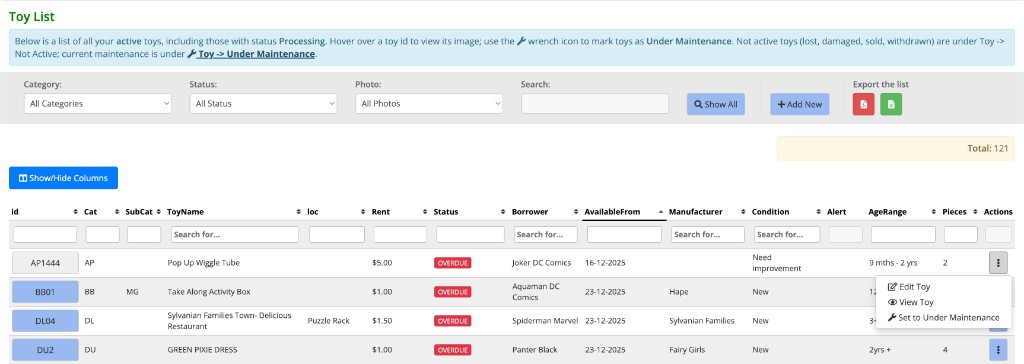
The Toy List page (Toy → Toy List) has been updated to match the design of the Members list: one grey bar for filters and export, a blue + Add New button, and a single Actions column with a three-dots menu instead of three separate icon buttons per row.
- Grey bar — Category, Status, Photo filters, Search, Show All, + Add New (blue, same style as Members list), and Export the list (PDF and Excel icon buttons). The Documentation button and the slide-out “Page instruction” panel have been removed.
- Action column — Each row has one blue Actions button (three dots). Click it to Edit Toy, View Toy, or Set to Under Maintenance (with confirmation).
Before and after (Toy list)
Here’s how the Toy List page looked before and after the update:
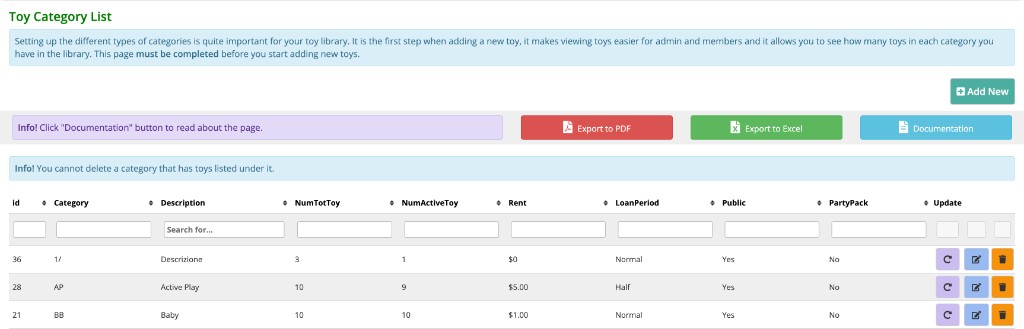
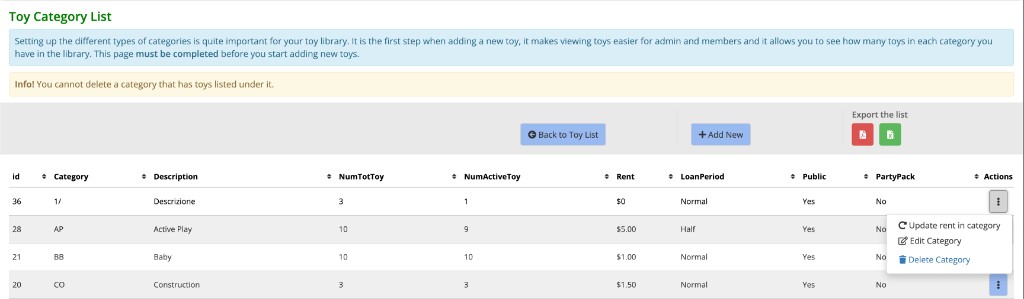
Toy Category List
The Toy Category List page (Toy → Category) now uses the same design as the Toy List and other key pages: one grey bar for actions and export, no table filters, and a single Actions column with a three-dots menu per row.
- Grey bar — Back to Toy List (blue), + Add New (pink, to add a new category), and Export the list (red PDF and green Excel icon buttons). The Documentation button and slide-out panel have been removed.
- Alerts — One yellow info alert: “You cannot delete a category that has toys listed under it.”
- Table — No filter inputs under the headers; the table is sortable with tablesorter but keeps a clean layout. Columns: id, Category, Description, NumTotToy, NumActiveToy, Rent, LoanPeriod, Public, PartyPack (if enabled), and Actions.
- Action column — Each row has one blue Actions button (three dots). Click it to Update rent in category, Edit Category, or Delete Category.
Before and after (Toy Category List)
Here’s how the Toy Category List page looked before and after the update:
Loan page
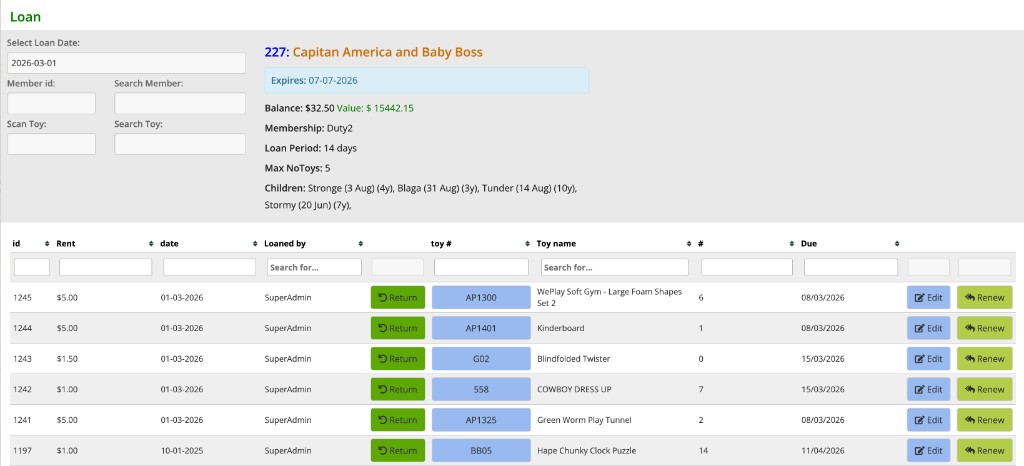
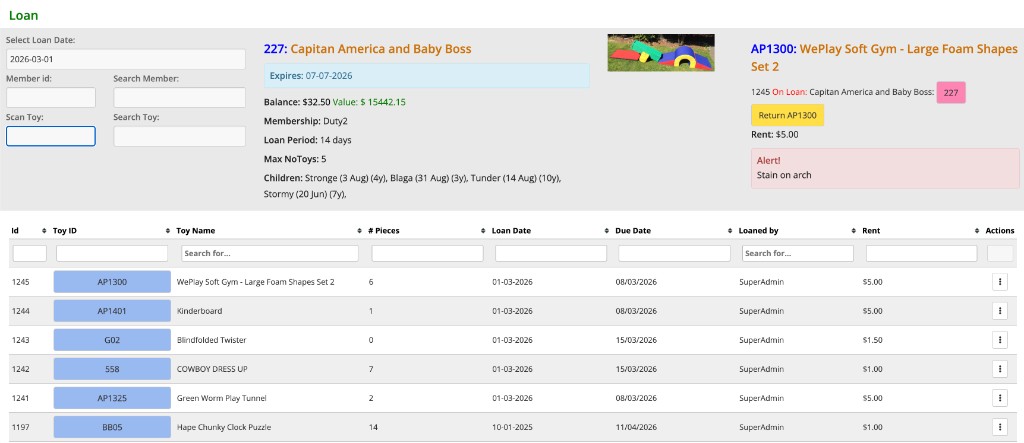
The Loan page (where you see a member’s current loans) has been updated for reliability and a cleaner layout.
- Technical updates — We fixed compatibility with the latest PHP so the page no longer shows warnings when you search for a toy, add a payment, or use Return, Edit, or Renew. Everything runs smoothly behind the scenes.
- Actions in one menu — Instead of three separate buttons (Return, Edit, Renew) per row, each loan now has a single Actions button (three dots). Click it to choose Return, Edit, or Renew. If a toy is reserved or membership has expired, Renew appears in the menu but is greyed out with a short explanation.
- Clearer column order and labels — The table columns are now: Id, Toy ID, Toy Name, # Pieces, Loan Date, Due Date, Loaned by, Rent, and Actions. Sortable and filterable as before.
Before and after (Loan table)
Here’s how the loans table looked before and after the update:
What it means for you
- Same MiBaseNZ — You won't notice any change in how you use the rest of the system. All your features are still there.
- Faster member management — Renew, resign, or send the login email from the list without opening extra pages.
- Better behind the scenes — Faster and more secure, so your library is in good hands.
- Ready for the future — Your software is now on the latest technology, so it's set for the years ahead.
Version 4.0.1 — October 2026
What's new in Version 4.0.1
This patch fixes a few issues around the admin header and the Reservation List, and keeps behaviour aligned with PHP 8.4.
- Top bar (member name) — After some actions (for example using Show All on the Reservation List), the system could clear the member id in a way that confused the header. The header now ignores empty
boridfields from forms instead of wiping your selected member, and it no longer shows PHP warnings when the member row cannot be loaded. - Reservation List — The Start Day filter is saved only for this page (it no longer clashes with the date used on Payments or statistics). The list shows active reservations only, starting from the day you choose; default and Reset both use today. The Reset button reliably refreshes that filter.
Version 4.0.2 — October 2026
What's new in Version 4.0.2
A new optional email you can turn on if you want.
- Members exit survey email — You can send an email a few days after a membership expires. It is off until you turn it on under Automatic emails.
Bugs fixed
- Join Now on your public website — When someone joins online, their name is now saved in the activity log.
- Hamilton Toy Box — payment name when approving a new member — The payment shows the new member’s name, not someone else’s.
- Central Hawkes Bay — same toy number twice — The same toy number will not appear as two toys on the list. You cannot copy a toy to a number that already exists.
- Te Puke — toy photos — Uploading a photo will not replace another toy’s picture by mistake. Copy Toy copies the photo to the new toy.
- Murray McGeorge — long membership type names — You can save a membership type with a longer name onto a member.
Version 4.0.3 — August 2026
What's new in Version 4.0.3
A few helpful fixes and one new tool for your opening days and holidays.
- Public holidays list — On Setup → Days and Times you can see upcoming New Zealand public holidays and add them to your closed days with one click.
- Message when you log in — The first time you log in after an update, a short message tells you what is new.
- Overdue fines — Fines only count the days you are open (the days you set on Setup → Days and Times).
- Search toys by age group — On the public Toys page and the members Toys page you can filter by the age groups you set under Toys → Age Group.
Bugs fixed
- Ponsonby — members renewing toys online — Members now get the same number of weeks as when you renew at the desk.
- Ellesmere — search toy on Loans — When you type a toy number, the right toy comes up first.
- Setup → Days and Times — You can delete a holiday without the page crashing. The time picker and Save buttons work properly.
- Return All — Returning all toys for a member works without error messages. Overdue fines use your opening days.
- Papamoa Toy Library — generate duty roster — You can extend rosters into new months without the overlapping dates error. Only missing duties are added.
- Wakatipu — popular toys — The year dropdown on the public site now stays on 1 year, 3 years or all time. Members Popular Toys has the same dropdown.
- Whangarei — loaned by mistake — If you loan a toy and return it the same day, it does not stay in the member’s loan history, and today’s rent for that toy comes off.
- Change a toy’s category — You can move a toy to another category even if that category already has the same internal number. The toy number (for example M14) stays the same.
- Waiuku — reservation list — Search Toy and Search Member on the Reservation List work again when you pick a name from the list.
- Parklands — members site on a phone — Toy details, the reservation calendar, and the roster fit the screen. Buttons and the colour key are no longer cut off.
- Parklands — double booking a toy — Two members can no longer reserve the same toy for overlapping dates. The second booking is refused with a message.
Version 4.0.4 — September 2026
Bugs fixed
- Parklands — retired toys reservation — Non-active toys (such as Damaged, Withdrawn, Sold, Missing, or Locked) can no longer be reserved online or at the desk. Changing a toy status automatically unchecks and clears reservation permissions.
- Reports — PDF download — Daily and monthly PDF reports no longer fail with PHP warnings before the file is sent.
- Hamilton Toy Box — fortnightly reservation days — Libraries that open every other week (for example alternate Saturdays) again show those days on the reservation calendar. The calendar no longer stops after the first year from the pattern start date.
- Reservation calendar — NaN / Invalid date — Choosing some open days (often a Saturday) no longer shows NaN or Invalid date in the calendar header. Reservation end dates are calculated with a fixed date format that works in Chrome and Safari.
What's new in Version 4.0.4
- Member duties left report — A new daily report lists active members with contact details and how many roster duties they still have left.
- Fortnightly pattern start — On Setup → Days and Times you can set which week of the fortnight is open, see which weekdays use Fortnightly, and preview the next open dates before saving.
- Optional email — reserved toys on loan — Under Setup → Automatic emails you can turn on loan_reserved. It emails a member who has a toy out when someone else has reserved it (a few days before the reservation). It is off unless you switch it on.
- Admin email — reservations due — reservations_due emails your library contact with ACTIVE reservations starting soon (default 3 days ahead). It is on by default and only sends when there is something on the list.
- Optional email — fill in roster — Under Setup → Automatic emails you can turn on fill_in_roster. Once a week it emails duty members if any Member roster slots are still empty. It is off unless you switch it on.